 Tronscanner
IronWallet MCP Is Live: How to Use a Self-Custody Crypto Wallet with AI Agents
IronWallet MCP Is Live: How to Use a Self-Custody Crypto Wallet with AI Agents
AI assistants already help people understand crypto, analyze data, work with Web3, and write code. Now they can go a step further — interacting with a real crypto wallet and performing supported operations on the user’s behalf.
With IronWallet MCP, you can ask an AI agent to check your balance and transaction history, show a receiving address, estimate network fees, send crypto, or execute a swap.
For example:
“What’s my ETH balance?”
“Show me my recent transactions.”
“Show me my address for receiving USDT.”
“How much will it cost to send 10 USDT to this address?”
“Send 10 USDT to this address.”
“Swap 0.01 ETH for USDC on Base.”
At the same time, the wallet remains self-custodial: your recovery phrase and private keys are stored locally on your computer, and transaction signing happens there as well. The AI gets access to specific wallet tools, but your private keys and recovery phrase are never shared with it.
In this guide, we’ll explain how IronWallet MCP works, what AI agents can already do with it, and how to set up and test an AI wallet yourself.
What Is MCP?
MCP (Model Context Protocol) is an open standard that allows AI assistants and agents to connect to external tools and data through structured calls.
An AI model can understand what you want, but understanding a request is not enough to perform a real-world action. It also needs a tool that lets it interact with the relevant system.
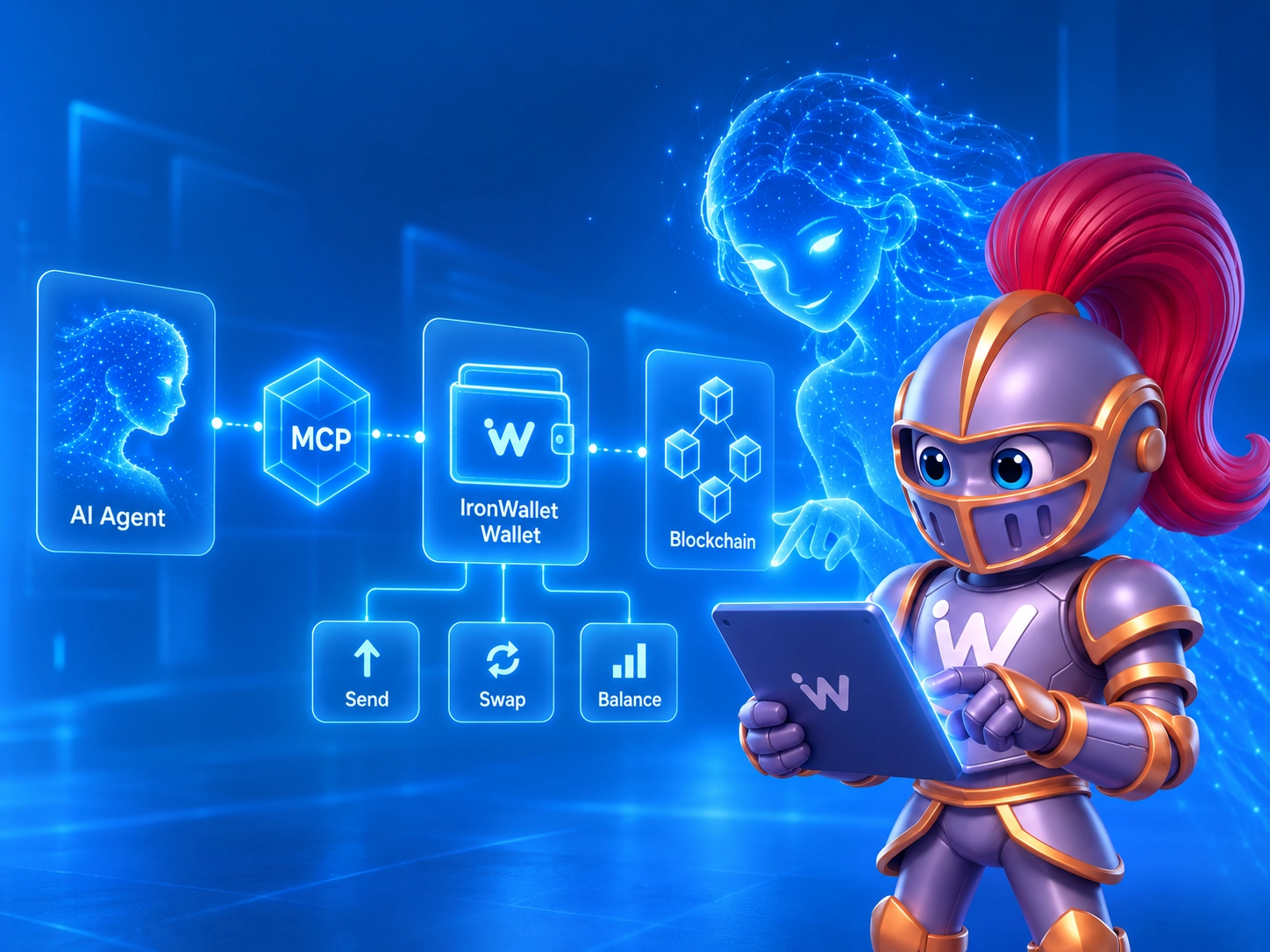
With IronWallet MCP, the flow looks like this:
User → AI Agent → IronWallet MCP Server → Local Signing → Blockchain
You describe what you want in natural language. The AI identifies the required action and calls the appropriate IronWallet MCP tool. The server performs the wallet operation, and if a blockchain transaction needs to be signed, the signing happens locally on your computer.
This makes natural language another interface for interacting with a crypto wallet.
How IronWallet MCP Works
IronWallet MCP Server runs on the user’s computer as a local, non-custodial hot wallet.
It has its own local wallet environment through which the AI can access a defined set of tools. This is a separate MCP environment — it is not remote control of the IronWallet mobile app.
A key part of the architecture is the separation between using wallet functionality and accessing the private keys that control the wallet.
Seed phrases are generated and stored locally in encrypted form. They are not sent to the AI agent, the LLM, or IronWallet backends. MCP tools do not accept or return seed phrases. Transactions are signed on the same computer where the MCP Server is running.
The basic model is:
The AI understands what action is needed.
IronWallet MCP performs the wallet operation.
Your private keys stay local.
IronWallet backends can receive signed transactions and swap payloads required to perform supported operations, but they do not receive the seed phrase. Backend requests use HTTPS.
This allows an AI agent to use crypto wallet functionality without receiving your recovery phrase.
What Can You Do with IronWallet Through AI?
Once MCP is connected, you do not need to know the names of individual wallet tools. You can describe the result you want in natural language, and the AI agent selects the appropriate tool.
Check Your Balance
You can ask:
“How much ETH do I have in my wallet?”
or:
“What’s my USDT balance?”
The AI calls get_balance and retrieves the current balance through the wallet tool.
View Recent Transaction History
Using get_transaction_history, the agent can retrieve recent wallet transactions.
For example:
“Show me my recent transactions.”
Transaction history is retrieved from public blockchain explorers and returned in pages, allowing the agent to request additional history when needed.
Get Your Address and Receive Crypto
The AI can retrieve addresses for your local wallets.
IronWallet MCP can also generate a deposit QR code using get_deposit_qr.
For example:
“Show me my wallet address.”
or:
“Generate a QR code for receiving crypto.”
A compatible MCP client can display the QR code directly. IronWallet MCP also provides a local qr_url as a fallback.
Estimate a Transfer Before Sending
Before sending funds, the AI can call estimate_transfer.
This lets it estimate the network fee without broadcasting a transaction to the blockchain.
You can first ask:
“How much will this transfer cost?”
and then decide whether you want to proceed.
Send Crypto
To execute a transfer, the agent uses send_transfer.
IronWallet MCP signs the transaction locally and broadcasts it to the blockchain.
The operation can then be checked using get_operation_status.
A typical flow looks like this:
check wallet and balance → estimate transfer → send → check status
There is also an important technical detail. If the requested amount would leave too little balance to cover the network fee, the MCP Server may slightly reduce the transfer amount so the fee still fits within the available balance. If that happens, the response indicates that the amount was adjusted.
Swap Crypto
AI agents can also work with the swap workflow.
IronWallet MCP can retrieve available swap networks and assets, request a quote, execute a swap, and check its status afterward.
A typical flow is:
get available networks → select assets → get a quote → execute the swap → check status
Token addresses and decimals come from the asset catalog rather than being generated from the language model’s memory.
Swap quotes can expire, so execute_swap uses a fresh quote before signing and executing the swap.
This is especially important for crypto operations, where contract addresses, decimals, and other token parameters should come from an up-to-date structured source rather than relying on model memory.
Which Networks Does IronWallet MCP Support?
IronWallet MCP currently supports 12 blockchain networks:
Ethereum, BNB Smart Chain (BSC), Polygon, Base, Arbitrum, Optimism, Avalanche, TRON, Bitcoin, Solana, XRP, and TON.
This is the current network list specifically for MCP. The capabilities of the regular IronWallet app and IronWallet MCP should be considered separately.
How to Set Up IronWallet MCP
Setup is very easy. Simply go to the official IronWallet website, download the installer, and launch it.
On Windows, you may see a warning that the software is unrecognized or comes from an unknown publisher. This can happen because IronWallet MCP has only recently been released. Before continuing, make sure you downloaded the installer from the official IronWallet website.
The installer works with Windows PCs, Macs with Apple silicon or Intel processors, and Linux.
If you prefer to set it up yourself, simply ask your AI assistant — such as Cursor, Claude Code, or ChatGPT/Codex — to install IronWallet MCP and point it to the official IronWallet website.
We recommend Cursor for beginners, and please note that Claude Code works best with our installer.
Create a Dedicated AI Wallet
IronWallet MCP does not require a separate sign-in or account.
On first launch, the server generates the local secrets it needs on your computer.
Before creating or importing a wallet, you need to accept the MCP disclaimer. This can be done through the AI agent or by pressing Continue in the local Wallet Manager.
You can then create a new wallet using create_wallets.
For AI use, we recommend creating a separate, dedicated wallet rather than importing your main or savings wallet. IronWallet MCP is a hot wallet, so it is best to keep only a limited amount intended for agentic operations in it.
When a wallet is created, create_wallets returns:
backup_url
Open it in your browser to view and back up your recovery phrase.
Sensitive recovery-phrase operations take place on a local page at:
127.0.0.1
This is a loopback address, meaning the page runs locally on your computer rather than as a normal public website.
Your recovery phrase is never displayed in the AI chat or returned by MCP tools. The local Wallet Manager automatically shuts down after 15 minutes of inactivity.
Back up your recovery phrase securely before you start using funds.
Fund Your AI Wallet
Once the wallet has been created, you can give the AI a simple command:
“Show me my wallet address.”
or:
“Generate a QR code for receiving crypto.”
IronWallet MCP can retrieve the address through its wallet tools or generate a deposit QR code.
Transfer a small amount of crypto that you want to use for testing to the new wallet.
Because IronWallet MCP is a hot wallet, we recommend keeping the balance limited to what you are comfortable using in agentic workflows.
Start with Simple Commands
For your first test, start with actions that do not move funds:
“What’s my ETH balance?”
“Show me my wallet address.”
“Show me my recent transactions.”
“Generate a deposit QR code.”
Then try an estimate:
“How much will it cost to send 10 USDT to this address?”
Once you are comfortable with the workflow, you can test a small real operation:
“Send 10 USDT to this address.”
or:
“Swap 0.01 ETH for USDC on Base.”
The AI selects the appropriate MCP tool, and IronWallet MCP performs the permitted wallet action.
After the initial setup, you do not need to manually call get_balance, estimate_transfer, send_transfer, or other technical tools. You can interact with the wallet using natural-language commands.
Can You Use IronWallet MCP on a Smartphone?
The current version of IronWallet MCP is designed for desktop use.
The MCP Server runs locally on a computer and communicates over stdio, so the AI-agent workflow described here cannot currently be run directly on a smartphone.
The IronWallet mobile app remains a separate interface for using a regular crypto wallet.
What to Know Before Sending Funds Through AI
Once configured, an AI agent can call wallet tools that perform real operations. Before using transfers and swaps, it is important to understand the authorization model.
A User Command Can Lead Directly to a Transaction
IronWallet MCP does not have a mandatory per-transaction confirmation UI.
If you say:
“Send 10 USDT to this address.”
and the operation is allowed by the wallet’s current policy, the AI can call send_transfer, after which the MCP Server can sign the transaction locally and broadcast it.
For the MCP Server, your chat instruction acts as the authorization. There is no additional mandatory IronWallet MCP confirmation window before every transaction. An AI assistant can still be configured to ask for confirmation before acting, but that extra step is not enforced by the MCP Server itself.
Once broadcast, crypto transfers and swaps are irreversible.
This is why we recommend using a dedicated hot wallet with a limited balance rather than your main wallet for agentic operations.
You Can Limit What the AI Is Allowed to Do
Each wallet can be configured with a policy using:
set_wallet_policy
These limits are off by default and can be enabled depending on how much authority you want to give the agent.
Read-Only Mode
readOnly blocks operations that move funds.
You can also enable a server-wide read-only mode with:
IW_READ_ONLY=true
This process-wide setting blocks send_transfer and execute_swap.
Maximum Transaction Amount
The maxPerTxUsd setting lets you define the maximum USD value of a single operation.
If no USD rate is available for the asset, the limit fails closed: the operation is rejected instead of being allowed to bypass the configured maximum.
Recipient Allow-List
Transfers can also be restricted to a list of approved recipient addresses.
If an address is not on the allow-list, the transfer can be rejected by the wallet policy.
For first-time use, a cautious setup looks like this:
dedicated AI wallet → small balance → appropriate permissions → start with read operations → test a small transaction
Where IronWallet MCP Stores Wallet Data
Local MCP Server data is stored in:
~/.ironwallet-mcp/
The directory contains:
the encrypted keystore;
the keystore wrapping secret;
the relay API key;
the device ID;
diagnostic logs.
Seed material is not written to diagnostic logs. Local secret files are created with owner-only permissions.
Treat this directory as sensitive.
If an attacker obtains both the keystore and the wrapping secret, they can gain control of the funds.
You should also not delete this directory as a way to “reset” the MCP Server. If the local data is removed before the recovery phrase has been backed up, access to the wallet can be permanently lost.
Your wallet backup is the recovery phrase — not the contents of this directory.
What to Do If a Transfer or Swap Times Out
With blockchain operations, a timeout does not necessarily mean the operation failed.
The transaction may already have been broadcast before the AI client stopped waiting for a response.
If an operation times out, do not immediately repeat the same command.
For a transfer, first check:
get_operation_status
For a swap:
get_swap_status
Only decide whether to retry after checking the status of the original operation.
This reduces the risk of accidentally executing the same transfer or swap twice.
What IronWallet MCP Does Not Currently Support
The current version of IronWallet MCP focuses on crypto wallet operations, including balances, transaction history, receiving crypto, transfers, swaps, and related wallet functionality.
Buying or selling crypto for fiat through MCP is not currently supported.
For example:
“Buy $100 worth of BTC with my bank card.”
is not part of the current MCP workflow.
You also need a compatible desktop MCP client. A regular AI chat without an MCP connection does not automatically have access to IronWallet wallet tools.
How AI Agents Change the Way We Use Crypto Wallets
MCP adds another way to interact with a wallet alongside the traditional interface: natural language.
Instead of finding each function manually, you can describe the result you want:
check a balance → view transaction history → get an address → estimate a transfer → send crypto → execute a swap → check the status
The AI translates that intent into a structured call to the appropriate wallet tool.
This approach is particularly relevant to Web3, where even a simple user request can involve blockchain networks, token parameters, network fees, quotes, and transaction statuses.
At the same time, self-custody remains at the core of IronWallet MCP: private keys stay local, transactions are signed on the user’s computer, and the AI interacts through a defined set of wallet tools.
AI also introduces another layer of control.
With self-custody, it matters who controls the private keys. When a software agent can execute real wallet operations, it also matters what that agent is allowed to do.
That is why a dedicated AI wallet, a limited balance, and wallet policies become part of a practical agentic wallet setup.
IronWallet MCP brings these two ideas together: self-custody and the ability to use an AI agent as a natural-language interface for real crypto wallet operations.
AI uses the wallet tools. Your private keys stay with you.